
How to Train an AI Chatbot on Your Own Business Data
Learn how to feed your website, documents, and FAQs into Paperchat so your AI chatbot answers like an expert on your business.

Stan
@stan
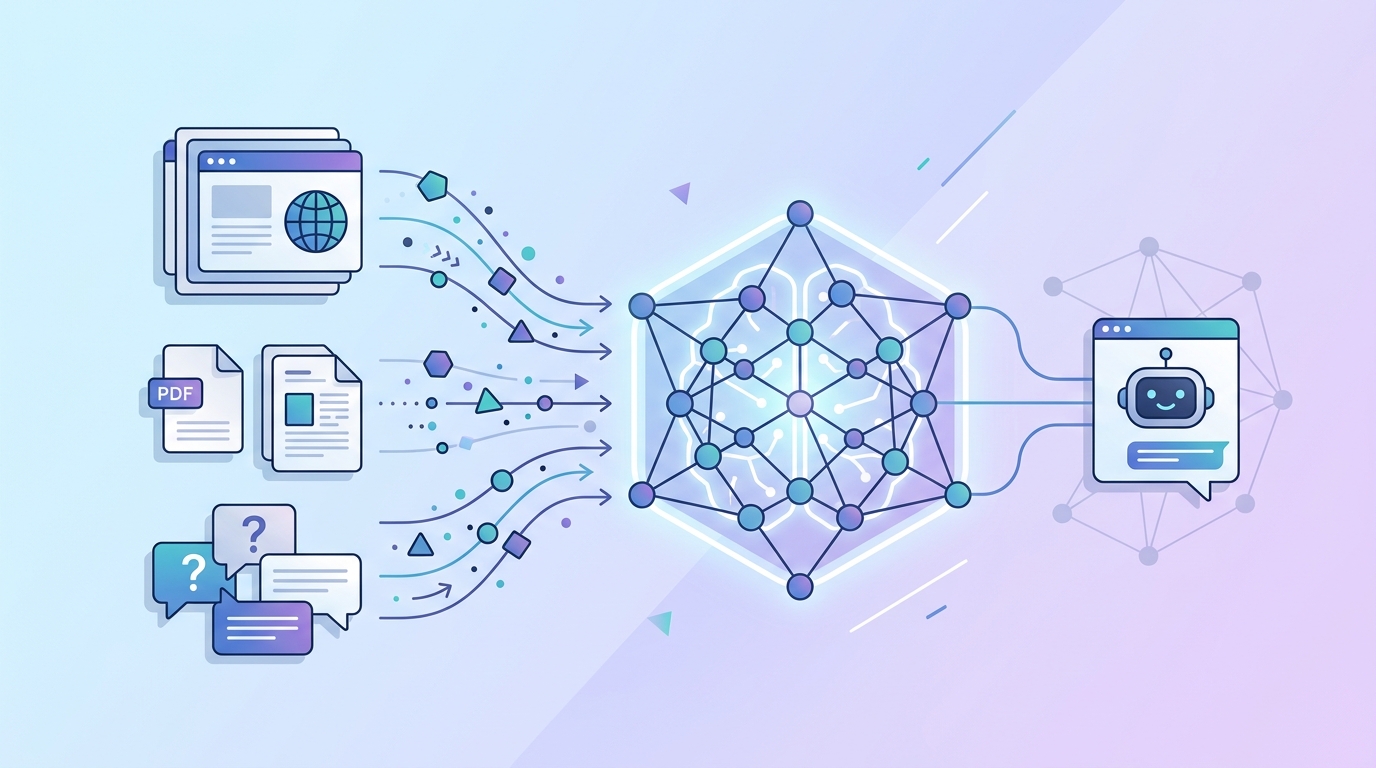
A generic AI chatbot is only as good as the questions it can answer. If it doesn't know anything about your business — your products, your pricing, your policies — it's not going to be much help to your customers.
The good news: training your Paperchat chatbot on your own business data is straightforward, and you don't need to write a single line of code to do it.
Why "Training" Matters
When we say training a chatbot on your data, we mean giving it access to the right information so it can answer questions accurately. Paperchat uses a technique called Retrieval-Augmented Generation (RAG) — it searches through your business content and uses that context when generating responses, rather than hallucinating answers.
This is what makes Paperchat answers trustworthy. It isn't making things up. It's answering from content you've provided.
The Four Ways to Add Your Data
1. Website Crawl (Fastest)
Paste your website URL into Paperchat and it will automatically crawl your pages, extract the relevant content, and index it. This works well for:
- Product or service pages
- About pages and company information
- FAQ sections already on your site
- Pricing pages
Paperchat crawls up to 50 pages by default. You can configure which pages to include or exclude using URL patterns — useful if you want to skip blog posts and focus only on product content.
2. Document Upload
Upload files directly to your knowledge base. Supported formats include:
| Format | Best For |
|---|---|
| Product manuals, compliance docs, guides | |
| DOCX | Internal FAQs, policy documents |
| TXT | Raw data dumps, exported content |
| CSV | Product catalogs, pricing tables |
Paperchat extracts the text content, indexes it, and makes it searchable. A 50-page PDF is typically processed in under 30 seconds.
3. Manual Q&A Pairs
Sometimes the most important knowledge in your business lives in someone's head, not in a document. The Q&A editor lets you type specific question-and-answer pairs directly:
- Q: Do you offer a free trial?
- A: Yes — all plans include a 14-day free trial with no credit card required.
These pairs are given high priority in the retrieval system, so when a visitor asks a matching question, your hand-crafted answer is used.
4. Plain Text Blocks
For content that doesn't fit neatly into a document or Q&A format, you can paste text directly. Company history, team bios, return policies — anything goes.
Tips for Better Chatbot Responses
Write for the questions visitors actually ask
Your knowledge base should answer the questions your customers ask — not just describe your product. Instead of:
"Our platform uses advanced natural language processing to deliver contextually relevant responses."
Write something like:
"The chatbot understands questions written in plain English. You don't need to use specific keywords — just ask naturally."
Use your support inbox as source material
Go through your last three months of support emails or tickets. The questions that come up repeatedly should all have clear answers in your knowledge base. Copy-paste those questions and answers directly.
Keep answers specific and factual
Vague answers lead to vague responses. Instead of "Our pricing varies depending on your needs," write out the actual tiers, what's included, and what's not. The more specific your data, the more specific the bot's answers.
Add negative examples
You can tell Paperchat what the bot should not answer. For topics outside your scope — competitors, legal advice, medical questions — you can add instructions to politely decline and redirect. This keeps your bot on-brand and professional.
How to Structure Your Knowledge Base
A well-structured knowledge base mirrors how your customers think about your business:
- Products and Services — What you offer, how it works, key features
- Pricing — Plans, what's included, billing questions
- Getting Started — Setup instructions, onboarding steps
- Troubleshooting — Common problems and how to fix them
- Policies — Refunds, cancellations, privacy, shipping
- Company — About, contact info, support hours
You don't need to cover everything before going live. Start with the top 10 questions your team answers every week and expand from there.
Keeping Your Data Fresh
Your business changes — prices update, products launch, policies shift. Paperchat lets you sync your knowledge base in several ways:
- Manual re-crawl — Trigger a fresh crawl of your website anytime from the dashboard
- Scheduled sync — Set a daily or weekly automatic re-crawl
- Zapier/Webhook integration — Trigger a re-crawl automatically when you publish new content
Stale data leads to wrong answers. Build a habit of updating your knowledge base whenever something significant changes in your business.
Testing Your Chatbot Before Going Live
Before you embed the widget on your site, use the built-in preview chat in the Paperchat dashboard. Type in questions the way your customers would — including typos and informal phrasing.
If the bot gives a wrong answer, add the correct information to your knowledge base and test again. If it gives a vague answer, make your source content more specific.
Aim for at least 15–20 test questions before going live. Cover your most common support topics and your most important sales questions.
A well-trained chatbot doesn't just answer questions — it represents your business. Take the time to build your knowledge base properly and you'll have an AI agent that sounds like your best, most knowledgeable team member, available around the clock.
More Articles
How to Add a Live Chat Widget to Your Website in Under 10 Minutes
A step-by-step guide to installing Paperchat's AI chat widget on any website — no developer required.
March 29, 2026
How to Sync Your Website Content with Your AI Chatbot Automatically
Keep your Paperchat knowledge base up to date with your website without manual updates — using scheduled crawls, webhooks, and CMS integrations.
March 29, 2026