
How to Build a Multilingual AI Chatbot for a Global Audience
A step-by-step guide to setting up Paperchat to detect visitor language automatically and respond in their native tongue — without managing multiple bots.

Stan
@stan
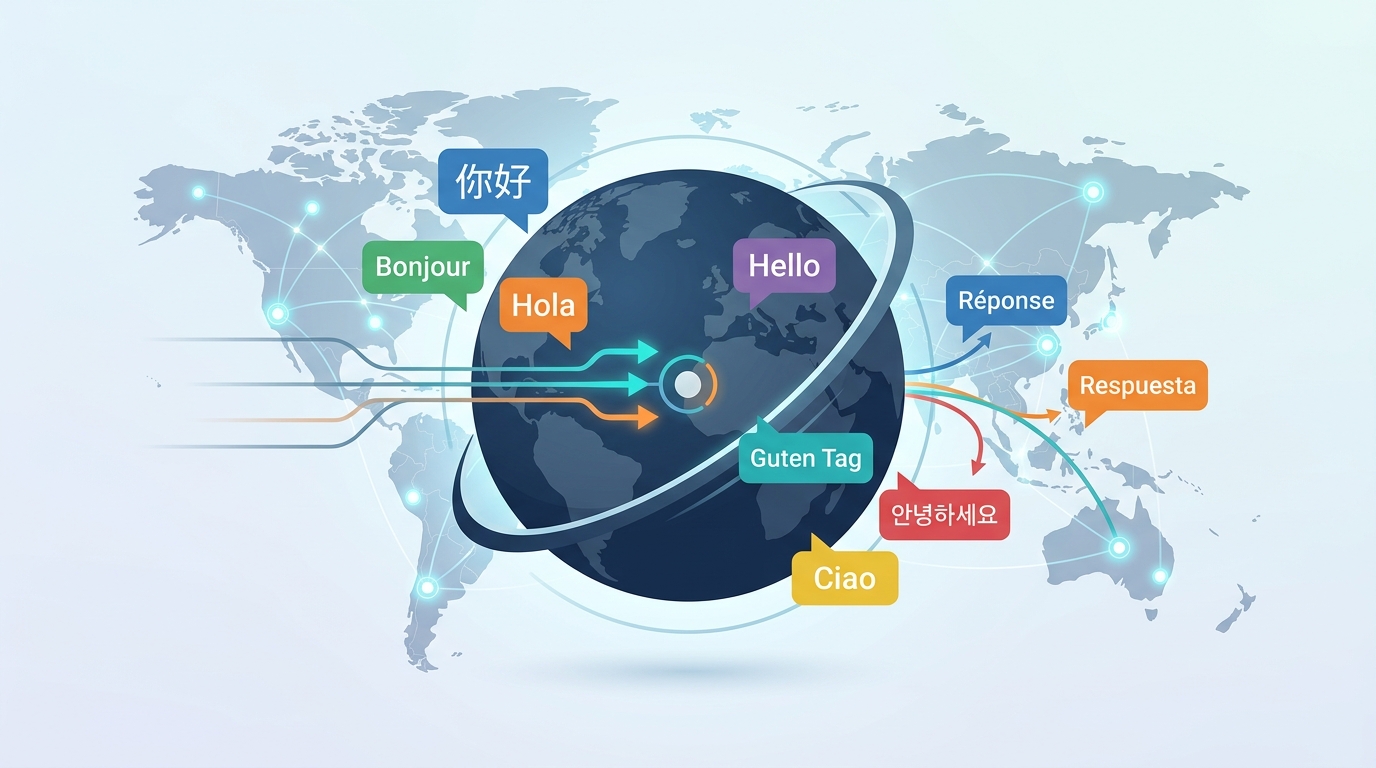
If your website serves customers in multiple countries, a chatbot that only speaks English is leaving money on the table. Visitors who can't communicate in their own language bounce. They don't buy. They don't come back.
Setting up a multilingual AI chatbot with Paperchat doesn't require managing separate bots for each language or hiring translators. Here's how it works.
How Paperchat Handles Multiple Languages
Paperchat's multilingual support is built on two layers:
- Automatic language detection — when a visitor types a message, Paperchat detects the language automatically
- AI-generated responses in the visitor's language — the underlying model responds in the same language it detects, drawing from your knowledge base content
This means you can write your knowledge base in English, and Paperchat will automatically translate and respond in French, Spanish, German, Portuguese, Japanese, and dozens of other languages.
No manual translation work required for standard responses.
Step 1: Enable Multilingual Mode
In your Paperchat dashboard, go to Settings → Language and toggle on Multilingual Mode. You'll see:
- Auto-detect (recommended) — the bot matches the visitor's language automatically
- Fixed language — the bot always responds in a specific language regardless of input
- Language selector — shows a language picker to visitors before the chat starts
For most global businesses, Auto-detect is the right choice. It's seamless and requires no action from the visitor.
Step 2: Set a Default Language
Choose your primary language — the one your knowledge base is written in. English is typical, but any language works. This is the language Paperchat falls back to when:
- The detected language has very low confidence
- The visitor's language isn't supported
- The content needed to answer a question only exists in your default language
Set this under Settings → Language → Default Language.
Step 3: Add Language-Specific Welcome Messages
While your bot can respond in many languages automatically, your welcome message is static — it's set in advance, not generated dynamically. If your primary audience is English-speaking, defaulting to English is fine.
But if you have strong traffic from specific regions, create language-specific welcome messages:
Go to Settings → Widget → Welcome Messages and add variants:
- English — "Hi! How can I help you today?"
- Spanish — "¡Hola! ¿Cómo puedo ayudarte hoy?"
- French — "Bonjour ! Comment puis-je vous aider ?"
- German — "Hallo! Wie kann ich Ihnen helfen?"
Paperchat uses the visitor's browser language setting to select the appropriate welcome message — giving visitors a localized first impression before they've typed a word.
Step 4: Add Multilingual Content to Your Knowledge Base
Auto-translation works well for general questions. For content where precision matters — legal language, technical specifications, pricing, policies — consider adding the content directly in each language.
In your knowledge base, you can tag content by language:
- Add your refund policy in English
- Add the same policy in Spanish (translated by you or a translator)
- Paperchat prioritizes the matching-language content when responding to Spanish-speaking visitors
This hybrid approach — AI translation for general content, human-reviewed content for critical information — gives you accuracy where it matters most.
Step 5: Configure Human Handover per Language
When a non-English-speaking visitor needs to escalate to a human, routing them to an English-only agent creates a problem. Solve this upfront.
In Settings → Team, assign each agent a set of supported languages. When escalation triggers:
- A Spanish-speaking visitor gets routed to a Spanish-speaking agent
- If no matching agent is available, the bot explains the situation and collects contact info for follow-up
If you don't have multilingual staff, configure the after-hours escalation flow to collect the visitor's preferred language along with their contact info. Attach it to the ticket so the agent knows before reaching out.
Languages Supported
Paperchat's auto-detection and response generation supports over 50 languages, including:
- European: English, Spanish, French, German, Italian, Portuguese, Dutch, Polish, Swedish, Norwegian, Danish, Finnish, Romanian, Czech, Hungarian
- Asian: Japanese, Korean, Simplified Chinese, Traditional Chinese, Vietnamese, Thai, Indonesian, Malay
- Middle Eastern: Arabic, Hebrew, Turkish
- Other: Russian, Ukrainian, Hindi, Bengali
If you serve markets in these regions, your visitors can communicate naturally from day one.
Testing Your Multilingual Setup
Before going live, test the language detection manually:
- Open the Paperchat preview chat
- Type a message in French: "Comment puis-je annuler mon abonnement?"
- Confirm the bot responds in French
- Try Spanish, German, and any other target languages
Also test with intentionally imperfect inputs — most real visitors don't write perfect grammar in any language. The bot should handle informal or colloquial phrasing gracefully.
Business Impact of Multilingual Support
The numbers make a compelling case:
- Websites with multilingual support see 35% higher engagement from non-native-language visitors
- Customers are 3x more likely to purchase when they can get support in their native language
- Cart abandonment drops significantly when post-purchase support is available in the customer's language
For e-commerce businesses especially, multilingual chat support directly impacts conversion rates and repeat purchase behavior.
Building a multilingual chatbot with Paperchat requires almost no additional effort beyond enabling the feature. The AI handles language detection and response generation automatically. You write your knowledge base once, and your chatbot speaks to the world.
More Articles
How to Add a Live Chat Widget to Your Website in Under 10 Minutes
A step-by-step guide to installing Paperchat's AI chat widget on any website — no developer required.
March 29, 2026
How to Train an AI Chatbot on Your Own Business Data
Learn how to feed your website, documents, and FAQs into Paperchat so your AI chatbot answers like an expert on your business.
March 29, 2026