
How to Set Up a WooCommerce AI Chatbot for Your Online Store
A complete guide to adding Paperchat to your WooCommerce store — covering product questions, order tracking, returns, and cart recovery.

Stan
@stan
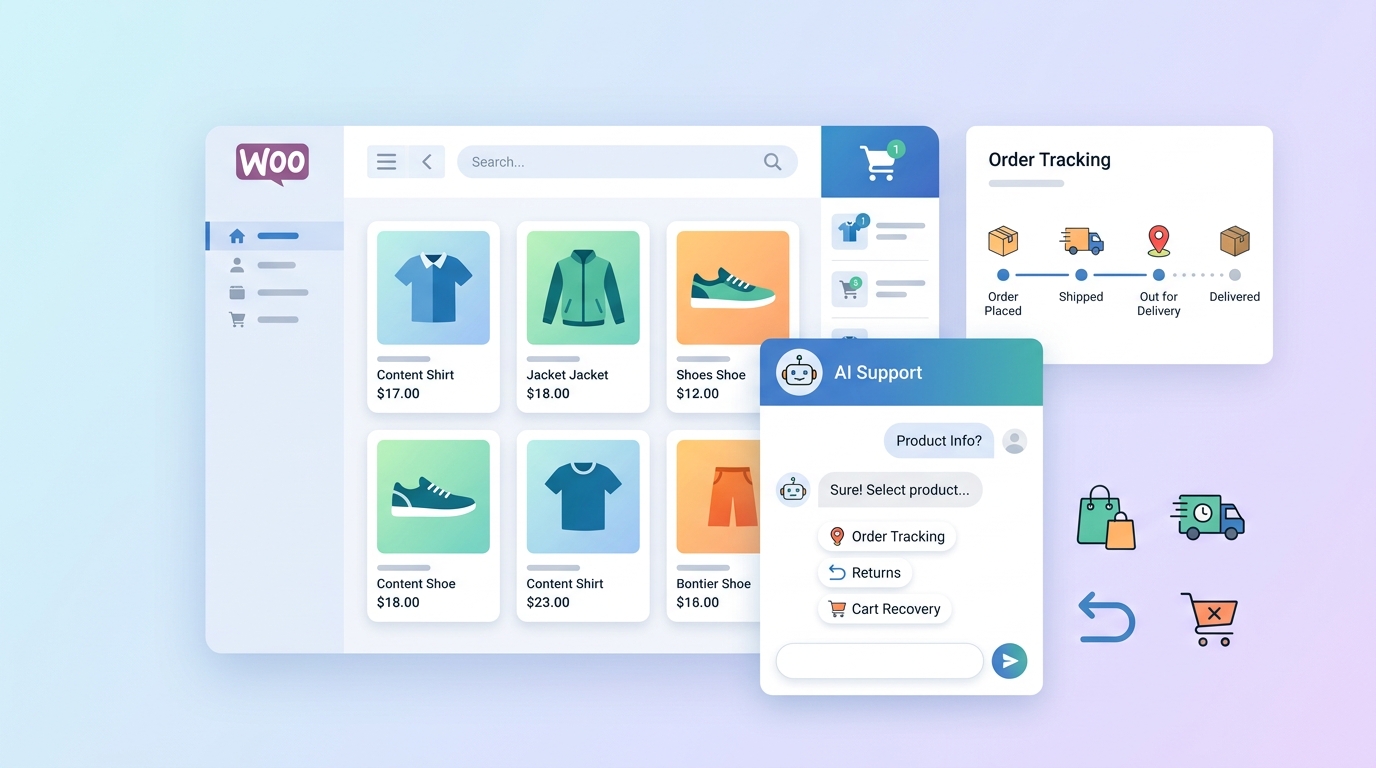
Running a WooCommerce store means handling a constant stream of customer questions: Where's my order? Do you have this in a different size? What's your return policy? Can I change my shipping address?
Most of those questions have the same answer every time. An AI chatbot handles them automatically — 24/7, instantly, without adding headcount.
Here's how to set up Paperchat on your WooCommerce store and configure it specifically for e-commerce use cases.
Installing Paperchat on WooCommerce
WooCommerce runs on WordPress, so installation follows the standard WordPress process.
Option A: Via the WordPress Admin
- In your WordPress dashboard, go to Appearance → Theme Editor → select your active theme's
functions.phporfooter.php - Paste the Paperchat embed script just before the closing
</body>tag - Save and visit your store to confirm the widget appears
Option B: Via a Plugin (Recommended)
Use the Insert Headers and Footers plugin (free, widely used):
- Install and activate the plugin
- Go to Settings → Insert Headers and Footers
- Paste your Paperchat embed code in the Footer section
- Save
This method is safer than editing theme files directly and survives theme updates.
Option C: Via a Child Theme
If you're using a child theme (recommended for WooCommerce), add the script to your child theme's footer.php. This is the most durable approach for long-term maintenance.
Configuring Your Knowledge Base for E-Commerce
WooCommerce chatbots need to answer a specific set of questions well. Build your knowledge base around these categories:
Order and Shipping Questions
These are the highest-volume queries for most stores:
- "Where is my order?" / "What's the status of my order?"
- "How long does shipping take?"
- "Do you ship internationally?"
- "Can I change my shipping address after ordering?"
- "My tracking number isn't working — what do I do?"
Add clear, specific answers. Include your carrier names, typical transit times by region, and what customers should do if their order is late.
Product Questions
- "What sizes are available?"
- "Is this product in stock?"
- "What's the difference between X and Y?"
- "Do you have X in a different color?"
For product-specific questions, Paperchat can crawl your WooCommerce product pages automatically — picking up product descriptions, specifications, and available variations.
Returns and Refunds
Write a clear, plain-English summary of your return policy:
"We accept returns within 30 days of delivery. Items must be unused and in original packaging. To start a return, reply with your order number and we'll send you a prepaid label."
A bot that can handle return requests end-to-end (collect order number, confirm eligibility, generate return label link) dramatically reduces your customer service workload.
Account and Checkout Questions
- "How do I reset my password?"
- "Can I checkout without creating an account?"
- "Why was my payment declined?"
- "Do you accept PayPal / Apple Pay / X?"
Connecting to WooCommerce Order Data
For real-time order status lookups, connect Paperchat to your WooCommerce store via the REST API integration.
In Paperchat, go to Settings → Integrations → WooCommerce:
- In your WordPress admin, go to WooCommerce → Settings → Advanced → REST API and create an API key with Read permission
- Copy the Consumer Key and Consumer Secret
- Paste them into Paperchat's WooCommerce integration settings
- Enter your store URL
Once connected, when a customer asks "Where's my order?" the bot can:
- Ask for their order number or email
- Look up the order in real time via the WooCommerce API
- Return the current status and tracking information
No human needed. The customer gets an instant, accurate answer.
Setting Up Cart Recovery Messages
Paperchat can trigger proactive messages to visitors who show cart abandonment signals — items in cart but lingering on the checkout page without completing purchase.
Configure a cart recovery trigger in Settings → Proactive Messages:
- Trigger: Visitor is on
/checkoutpage for more than 90 seconds without submitting - Message: "Having trouble checking out? I can help with payment questions or any other issues."
This opens a conversation at the exact moment a visitor is hesitating. Common cart abandonment reasons — concerns about payment security, unexpected shipping costs, questions about returns — can all be addressed by the bot immediately, recovering the sale.
Configuring Human Handover for Complex Issues
Some WooCommerce issues need human intervention:
- Order never arrived after 14+ days
- Damaged or incorrect item received
- Dispute or chargeback situation
- Custom or wholesale order requests
Set up escalation rules in Paperchat to route these to your support team:
- Keywords: "damaged," "wrong item," "never arrived," "dispute," "chargeback"
- Order age check: If API lookup shows order is 14+ days overdue
- Custom order flag: If visitor mentions "wholesale," "bulk," or "custom"
For after-hours escalations, collect the order number and email so your team can follow up proactively the next business day.
Measuring ROI for Your WooCommerce Chatbot
Track these metrics to measure the impact on your store:
| Metric | How to Measure |
|---|---|
| Support ticket deflection | Compare weekly ticket volume before and after launch |
| Cart recovery rate | % of cart abandonment conversations that complete checkout |
| Response time improvement | Average first response time (was: hours; now: seconds) |
| CSAT score | Post-chat ratings from customers |
| Bot resolution rate | % of chats fully resolved without human escalation |
Most WooCommerce stores see a 40–60% reduction in repetitive support queries within the first 30 days of deployment.
Quick Wins to Configure First
If you're short on time, prioritize these four configurations before anything else:
- Return policy — your most-asked question with a clear, process-driven answer
- Shipping times and carriers — reduce "where's my order" tickets immediately
- WooCommerce API integration — for real-time order status lookups
- Cart recovery proactive message — immediate ROI from the first day
Everything else — product catalog crawl, multilingual support, advanced qualification flows — can come later.
A WooCommerce AI chatbot isn't just a convenience feature — it's a revenue tool. It recovers abandoned carts, answers buying questions that convert browsers to buyers, and handles post-purchase support without adding to your team's workload. Set it up once and it runs your store's front-line support around the clock.
More Articles
How to Add a Live Chat Widget to Your Website in Under 10 Minutes
A step-by-step guide to installing Paperchat's AI chat widget on any website — no developer required.
March 29, 2026
How to Capture More Leads with an AI Chat Widget on Your Website
Turn passive website visitors into qualified leads using Paperchat's AI chat widget — with proactive messaging, lead forms, and CRM sync.
March 29, 2026